Order Bump vs Upsell vs Downsell in WooCommerce: How Each Works
An order bump is a small add-on offered on the checkout page, before payment. A one-click upsell is a larger offer shown after payment, accepted without re-entering card details. A downsell is a lighter alternative shown when the upsell is declined.
- Order bump: checkbox on the checkout, before payment.
- Upsell: separate page right after payment, one click to accept.
- Downsell: a cheaper offer after a "no" to the upsell.
What is an order bump?
An order bump is a small, low-friction offer displayed on the checkout page next to the order form. The buyer adds it with a single tick, and it is paid together with the main product. It works best when it is cheap, related to the main purchase and easy to understand in one sentence.
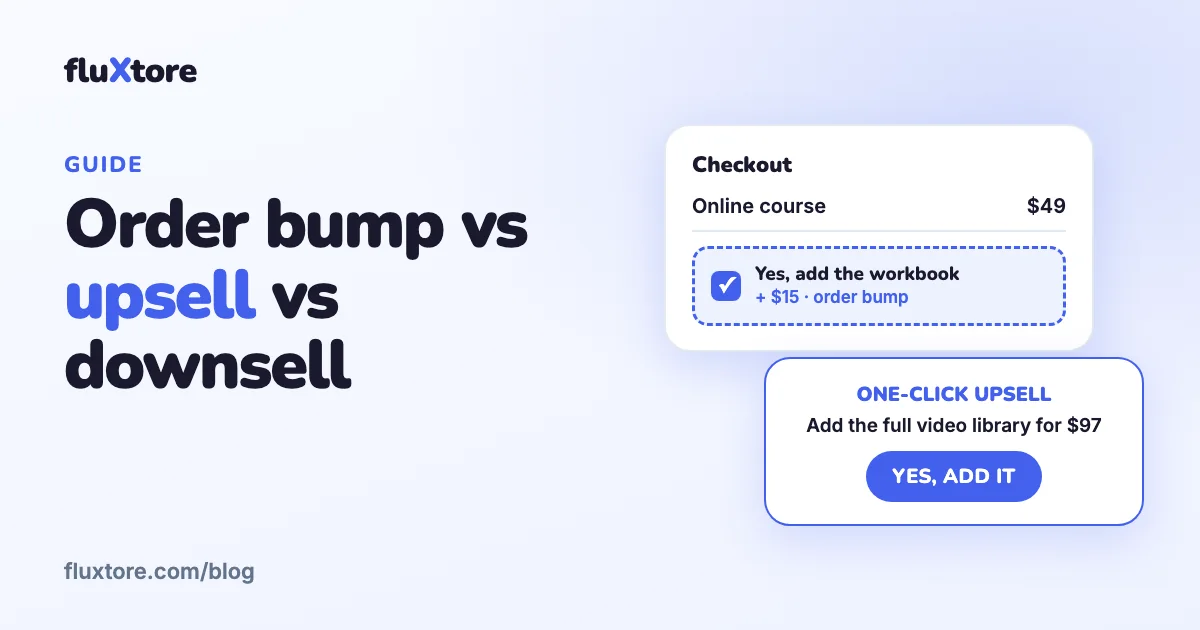
Example: a buyer purchases an online course for $49. The bump says, "Add the printable workbook for $15." Nothing else changes in the checkout, and the order total is updated when the box is ticked.
What is a one-click upsell?
A one-click upsell is a bigger offer shown immediately after the buyer has paid. Because the payment details are already stored with the order, accepting takes one click and no new card entry. If the buyer accepts, the amount is added to the order.
Example: after buying the $49 course, the buyer sees, "Get the full video library for $97." Two buttons are shown: Yes, add it to my order; No, thanks.
What is a downsell?
A downsell is a lighter version of the upsell, shown only when the buyer declines it. It might be a payment plan, a smaller package or a single item from the bundle. It gives a second chance without discounting the original offer to everyone.
What is the difference between an order bump, an upsell and a downsell?
The difference is timing and size. An order bump appears before payment and is small. An upsell appears right after payment and is larger. A downsell appears only after the upsell is declined and is lighter than the upsell. All three raise the average order value without more traffic.
| Order bump | One-click upsell | Downsell | |
|---|---|---|---|
| When it appears | On the checkout page | Right after payment | After the upsell is declined |
| Typical size | Small add-on | Larger related offer | Lighter than the upsell |
| How the buyer accepts | Ticks a box | Clicks one button | Clicks one button |
| Payment | Paid with the main order | Charged with the stored payment details | Charged with the stored payment details |
| Best for | Accessories, templates, extras | Bundles, upgrades, longer programs | Smaller packages, payment plans |
When should you use each one?
Use an order bump almost always, because it costs the buyer nothing to ignore. Use an upsell when you have a natural next product. Use a downsell only if the upsell is expensive enough that some buyers will refuse it for price. Start with one bump and one upsell, then add more.
What makes a good offer?
- Relevant: it helps the buyer get more out of what they just bought.
- Simple: one sentence, one price, one benefit.
- Proportionate: a bump much more expensive than the main product feels like a trick.
- Honest: say exactly what is included, and never hide it in the order total.
- Easy to refuse: a clear "No, thanks" button builds trust.
How do you set up bumps and upsells in WooCommerce with fluXtore?
You need the fluXtore Free plugin and a Pro license, because bumps, upsells and downsells are Pro features. The steps below follow the fluXtore documentation. Gateways: fluXtore works with the PayPal and Stripe implementations of WooCommerce.
- Open fluXtore, Funnels, and open your funnel (or create one from a template).
- Select the Checkout step and open its fluXtore step settings panel: assign the main product and configure the order bump there.
- Use Add New Step to add an Upsell step, then design the offer page with your builder.
- Place the Yes and No buttons: Yes accepts the offer and goes to the next step, No skips it.
- Add a Downsell step after the "No" of the upsell if you want a second offer.
- Finish with a thank-you page, run a test order, and read the analytics.
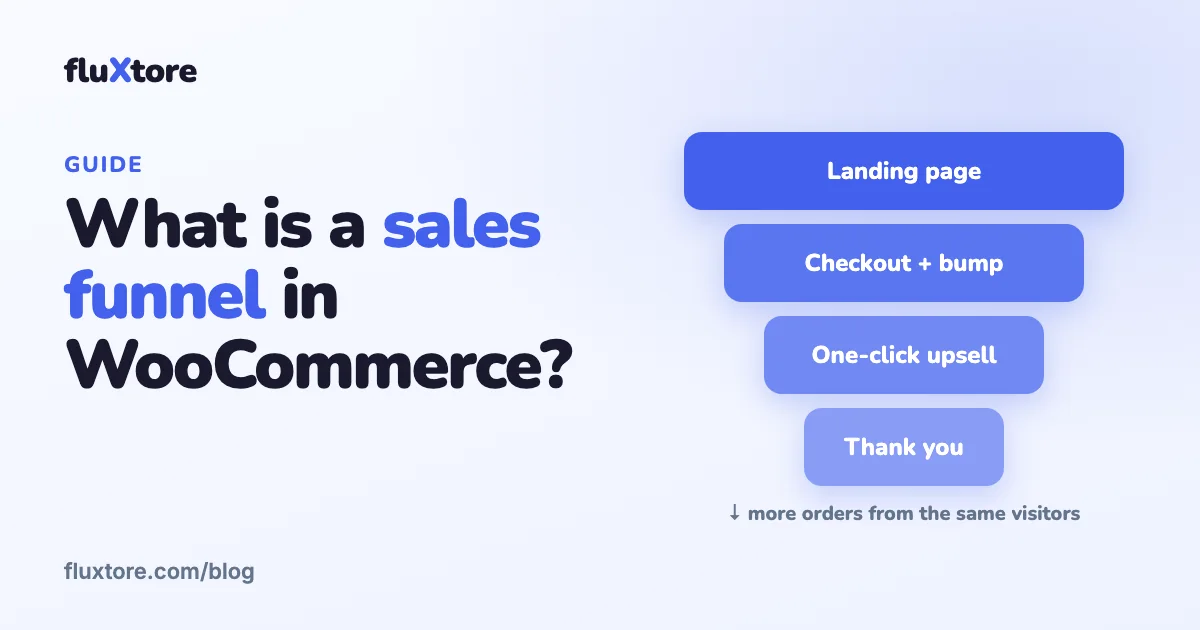
If you have not built a funnel before, begin with what a sales funnel is and how to build one.
How do you measure whether an offer works?
Look at the take rate (the share of buyers who accept) and at the change in average order value. A bump with a high take rate but a low price may add little revenue; an upsell with a low take rate may need a clearer headline. Use A/B testing to compare two versions of one step at a time.
Which plugin should you use?
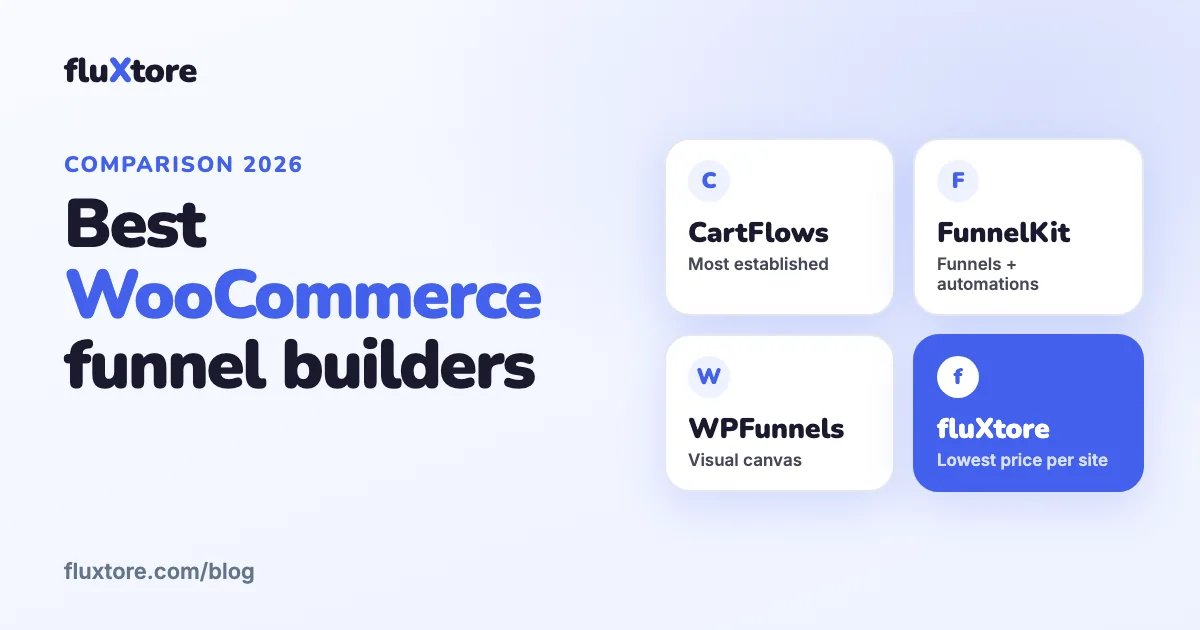
Several WooCommerce plugins offer bumps and upsells, with different prices and limits. Our comparisons cover CartFlows, FunnelKit and WPFunnels, and the roundup puts them side by side.
Build your first funnel with fluXtore
Order bumps, one-click upsells, A/B testing and analytics for WooCommerce. Start free, upgrade when you need more.
Get the free plugin See pricingFrequently asked questions
What is the difference between an order bump and an upsell?
An order bump is a small add-on shown on the checkout page before payment, ticked with one checkbox. An upsell is a larger offer shown right after payment and accepted with one click, without typing card details again.
Can I use order bumps and upsells in the same funnel?
Yes, and most funnels do. The bump raises the order at the checkout, the upsell adds a bigger offer after payment, and a downsell can follow if the upsell is declined.
Do I need a Pro license in fluXtore for order bumps?
Yes. In fluXtore, order bumps, upsells, downsells, A/B testing, per-funnel analytics and URL redirects need an active Pro license. The free plugin lets you build up to five funnels.
Which payment gateways work with one-click upsells in fluXtore?
fluXtore works with the PayPal and Stripe implementations of WooCommerce. For other gateways, ask support before you rely on them, because compatibility is not promised.
What is a good price for an order bump?
There is no universal number. Keep the bump small compared with the main product, related to it and easy to explain in one sentence. Test two prices with A/B testing and compare the revenue per visit.